
What is TPU Filament?
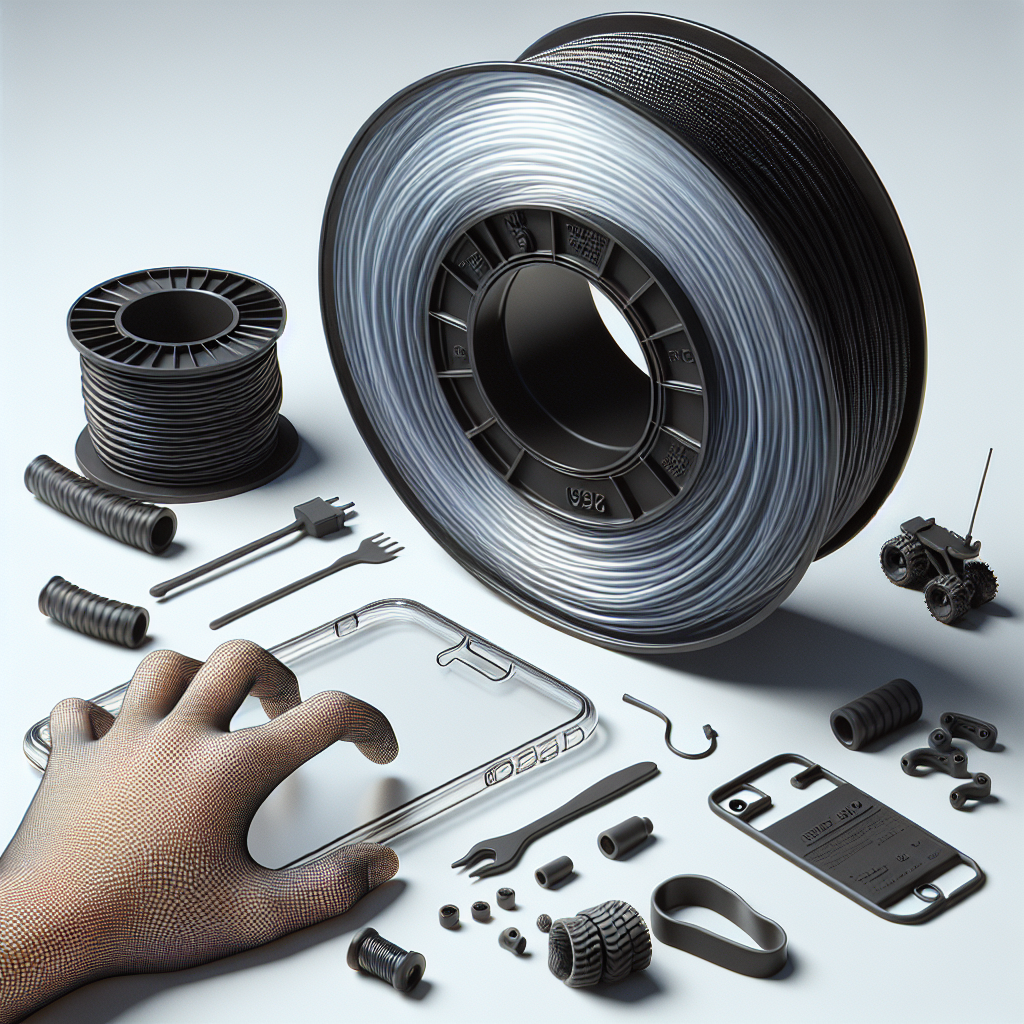
Thermoplastic Polyurethane (TPU) is a flexible, durable, and versatile material widely used in 3D printing for applications that require elasticity. Unlike standard PLA or ABS, TPU offers rubber-like properties, making it ideal for producing phone cases, gaskets, wearable devices, and any part that needs to flex or absorb impact.
Why Choose TPU for Flexible 3D Prints?
TPU stands out because of its unique combination of flexibility, abrasion resistance, and chemical resilience. It’s a go-to choice for parts subjected to movement, bending, or stretching. Additionally, TPU’s resistance to oils, greases, and many chemicals make it suitable for functional prototypes and end-use parts.
Preparing Your 3D Printer for TPU
Printing with TPU requires some preparation, as its flexibility can make it challenging to work with, especially compared to stiffer filaments.
- Direct Drive Extruder: TPU prints best on printers with direct drive extruders, where the filament path from the drive gears to the nozzle is as short as possible. Bowden extruders can work but may require slower speeds and more tuning.
- Filament Path: Ensure the filament path is constrained and smooth, minimizing gaps where the filament could buckle or tangle.
- Clean, Dry Filament: TPU is hygroscopic and absorbs moisture from the air, which can result in poor print quality. Store your filament in a dry box and, if necessary, dry it before printing (around 50°C for several hours).
- Nozzle Size: Use a standard 0.4mm nozzle, but larger nozzles (0.5–0.6mm) can help reduce clogging and improve reliability.
Optimal Print Settings for TPU
Getting the right settings is crucial for high-quality flexible prints:
- Print Temperature: 210°C–230°C. Start with the manufacturer’s recommendation and fine-tune if needed.
- Bed Temperature: 40°C–60°C. This helps with adhesion and minimizes warping.
- Print Speed: 15–30 mm/s. Slow speeds reduce the risk of filament buckling and improve layer bonding.
- Retraction: Reduce or disable retraction to prevent jams. If retraction is necessary, keep it low (1–2 mm) and slow (15–25 mm/s).
- Cooling: Minimal or no part cooling is needed. Too much cooling can affect layer adhesion.
Tips for Successful TPU Prints
- Bed Adhesion: Use a PEI sheet, painter’s tape, or a glue stick to improve bed adhesion. Flexible build plates make removing prints easier.
- First Layer: Set a slow first layer speed and ensure good bed leveling, as TPU is more forgiving but requires strong initial adhesion.
- Support Structures: TPU can be difficult to remove from supports. If you need supports, use lower density and try tree or custom supports for easier removal.
- Bridging and Overhangs: TPU can sag more than rigid filaments, so reduce overhang angles or add supports where needed.
Common Problems and How to Solve Them
- Stringing: TPU is prone to stringing due to its elasticity. Lower the print temperature slightly, reduce retraction, and ensure the filament is dry.
- Under-Extrusion: If you notice gaps or weak infill, slow the print speed even further and check for filament path obstructions.
- Clogs and Jams: Most common with Bowden setups. Keep filament movement smooth and consistent; consider upgrading to a direct drive if frequent problems occur.
Design Tips for Flexible Parts
- Wall Thickness: For optimal flexibility, use 1–2 perimeters and a low infill (10–20%). More perimeters increase strength but reduce flexibility.
- Infill Patterns: Gyroid or honeycomb infill can help maintain flexibility while adding some structure.
- Layer Height: Thicker layers (0.2–0.3mm) can improve layer bonding and speed up prints.
- Orientation: Print parts in a way that the flexing action is perpendicular to the layer lines to maximize durability.
Best Applications for TPU Parts
TPU is ideal for:
- Wearable bands and straps
- Protective phone and tablet cases
- RC car tires and drone landing pads
- Seals, gaskets, and vibration dampeners
- Custom grips and handles
Final Thoughts
TPU filament opens up a world of possibilities for flexible, resilient, and functional 3D printed parts. With careful printer setup, dialed-in settings, and thoughtful design choices, you can achieve professional-quality flexible prints right from your desktop 3D printer. Happy printing!
Leave a Reply